> ## Documentation Index
> Fetch the complete documentation index at: https://docs.wispera.ai/llms.txt
> Use this file to discover all available pages before exploring further.
# Run a skills camp
> A short program of numbered sessions, with a snapshot after each and one cumulative report at the end.
A **skills camp** is RinkNotes without a season. Instead of a roster you follow for months,
you run a handful of **numbered sessions**, capture the same way you always do, and RinkNotes
writes a short **snapshot after each session** plus one **cumulative report** at the end — the
report families keep.
## Create the camp
Creating a camp is an **org admin** job, done from the **team switcher** (the team tile at the
top of the sidebar or the capturer).
At the bottom of the switcher menu, tap **New skills camp**. If you don't see it, you're
not an org admin on this club.
Give the camp a **name**, pick the **skills variant** — **Goalie skills** or **Player
skills** — and set the **start**, **end**, and **number of sessions**.
Tap **Create camp**. It appears in the team switcher alongside your teams.
The **skills variant is set once and never changes.** It decides the whole skill vocabulary
for the camp, so a goalie camp and a player camp are separate camps — pick the right one.
## Add players and get consent
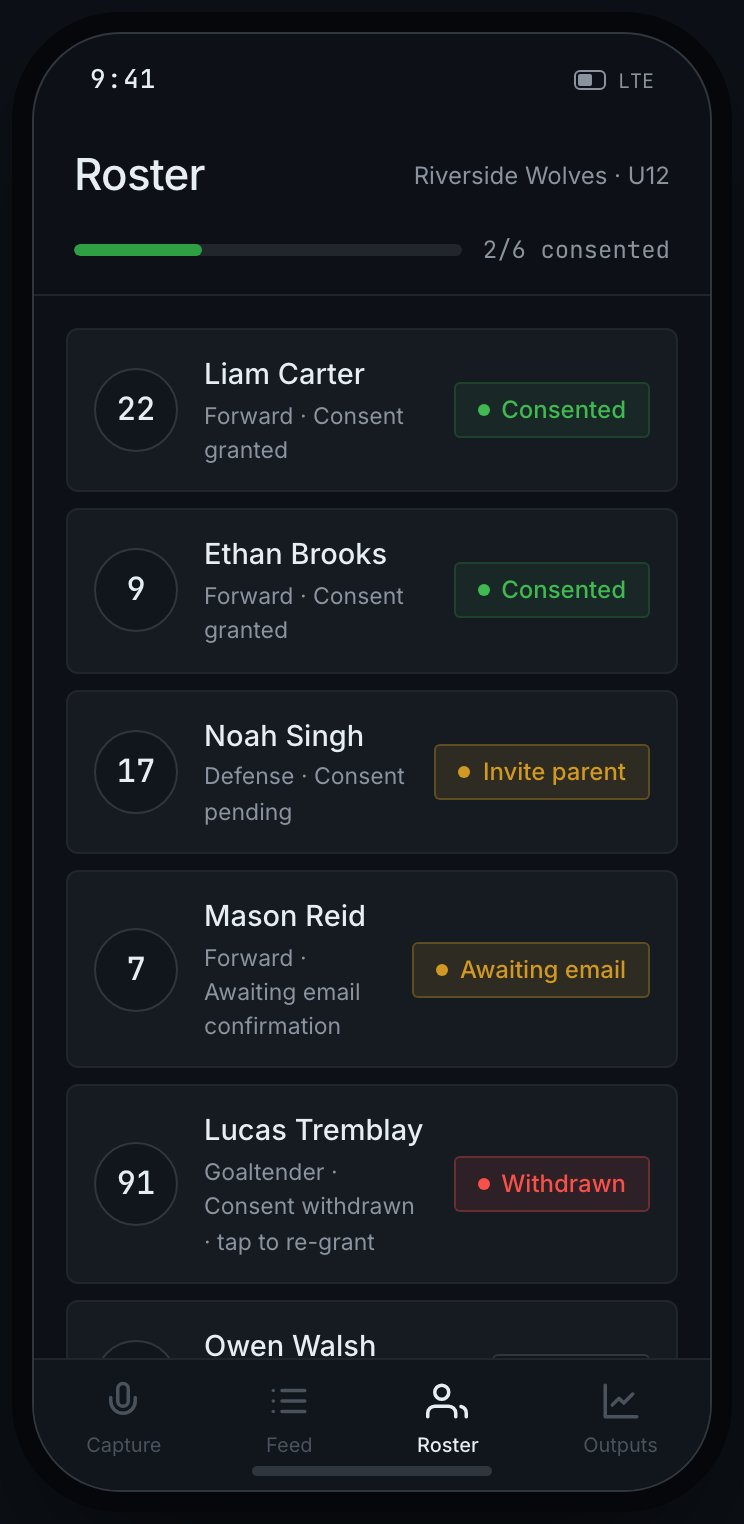
A camp has its own roster, and the consent rule is exactly the same as a team: **no consent,
no capture.** Add players on the camp's **Roster & Consent** tab and request consent before you
capture about anyone — see [Send consent requests](/coaches/consent-requests). On a **goalie**
camp, each new player's position is prefilled to **G**.
 ## Add co-instructors
Camps often run with several instructors. Add them the same way you'd add any staff — invite
them by email with a role (see [Invite your staff](/coaches/invite-staff)). Every note records
**who captured it**, so a session's snapshot shows which instructor saw what.
There's no separate "instructor" role — co-instructors are staff on the camp, with the same
capture and review access you'd give any coach.
## Run a session
You capture a camp in the **phone capturer**, not the desktop workspace. Because a camp is a
program of sessions rather than a season, the capturer's idle screen shows the camp's
**sessions** instead of a game/practice picker.
Tap **New session**. Then either **🎤 Say the session** — speak it, e.g. "session three,
edgework and transitions, Saturday at 9" — or type the fields by hand. Voice needs a
connection; typing always works.
Speaking never creates anything on its own. You see the parsed **session number**, **focus**,
**date**, and **time** in an editable preview — fix anything that's off — then tap **Create
session**. The session number is prefilled to the next one in the run.
Capture as usual. The session chrome shows where you are — **"Camp · Session 3 of 4"** —
and every note is filed under that session.
If you just start capturing without setting one up first, RinkNotes opens the next session
for you and carries its number — so you're never stuck mid-drill.
## Read the reports
Reports are **automatic** — there's no "generate" button.
* **After each session**, RinkNotes writes a **session snapshot** for each player: a short read
on how that session went.
* **When the camp ends**, it writes a **cumulative camp report** per player — the progression
across every session, a summary, and the session snapshots together. A player with theirs
done shows a **Final** chip.
## Add co-instructors
Camps often run with several instructors. Add them the same way you'd add any staff — invite
them by email with a role (see [Invite your staff](/coaches/invite-staff)). Every note records
**who captured it**, so a session's snapshot shows which instructor saw what.
There's no separate "instructor" role — co-instructors are staff on the camp, with the same
capture and review access you'd give any coach.
## Run a session
You capture a camp in the **phone capturer**, not the desktop workspace. Because a camp is a
program of sessions rather than a season, the capturer's idle screen shows the camp's
**sessions** instead of a game/practice picker.
Tap **New session**. Then either **🎤 Say the session** — speak it, e.g. "session three,
edgework and transitions, Saturday at 9" — or type the fields by hand. Voice needs a
connection; typing always works.
Speaking never creates anything on its own. You see the parsed **session number**, **focus**,
**date**, and **time** in an editable preview — fix anything that's off — then tap **Create
session**. The session number is prefilled to the next one in the run.
Capture as usual. The session chrome shows where you are — **"Camp · Session 3 of 4"** —
and every note is filed under that session.
If you just start capturing without setting one up first, RinkNotes opens the next session
for you and carries its number — so you're never stuck mid-drill.
## Read the reports
Reports are **automatic** — there's no "generate" button.
* **After each session**, RinkNotes writes a **session snapshot** for each player: a short read
on how that session went.
* **When the camp ends**, it writes a **cumulative camp report** per player — the progression
across every session, a summary, and the session snapshots together. A player with theirs
done shows a **Final** chip.
 You read both in the camp's **Reports** tab in the desktop workspace. Open a player to see
**Progression across the camp**, their summary, and each session's snapshot.
Because reports are generated on a schedule rather than on demand, a snapshot or the final
report can take a little while to appear after a session ends — it isn't instant.
## Where each part lives
| Task | Where |
| -------------------------------------- | ----------------------------------------------------- |
| Create the camp | Team switcher (org admin) — workspace **or** capturer |
| Add roster, staff, consent | **Roster & Consent** tab |
| Run sessions & capture | The **phone capturer** |
| Read snapshots & the cumulative report | The **Reports** tab, desktop workspace |
You read both in the camp's **Reports** tab in the desktop workspace. Open a player to see
**Progression across the camp**, their summary, and each session's snapshot.
Because reports are generated on a schedule rather than on demand, a snapshot or the final
report can take a little while to appear after a session ends — it isn't instant.
## Where each part lives
| Task | Where |
| -------------------------------------- | ----------------------------------------------------- |
| Create the camp | Team switcher (org admin) — workspace **or** capturer |
| Add roster, staff, consent | **Roster & Consent** tab |
| Run sessions & capture | The **phone capturer** |
| Read snapshots & the cumulative report | The **Reports** tab, desktop workspace |