

Create the camp
Creating a camp is an org admin job, done from the team switcher (the team tile at the top of the sidebar or the capturer).1
Open the team switcher and choose New skills camp
At the bottom of the switcher menu, tap New skills camp. If you don’t see it, you’re
not an org admin on this club.
2
Fill in the details
Give the camp a name, pick the skills variant — Goalie skills or Player
skills — and set the start, end, and number of sessions.
3
Create it
Tap Create camp. It appears in the team switcher alongside your teams.
Add players and get consent
A camp has its own roster, and the consent rule is exactly the same as a team: no consent, no capture. Add players on the camp’s Roster & Consent tab and request consent before you capture about anyone — see Send consent requests. On a goalie camp, each new player’s position is prefilled to G.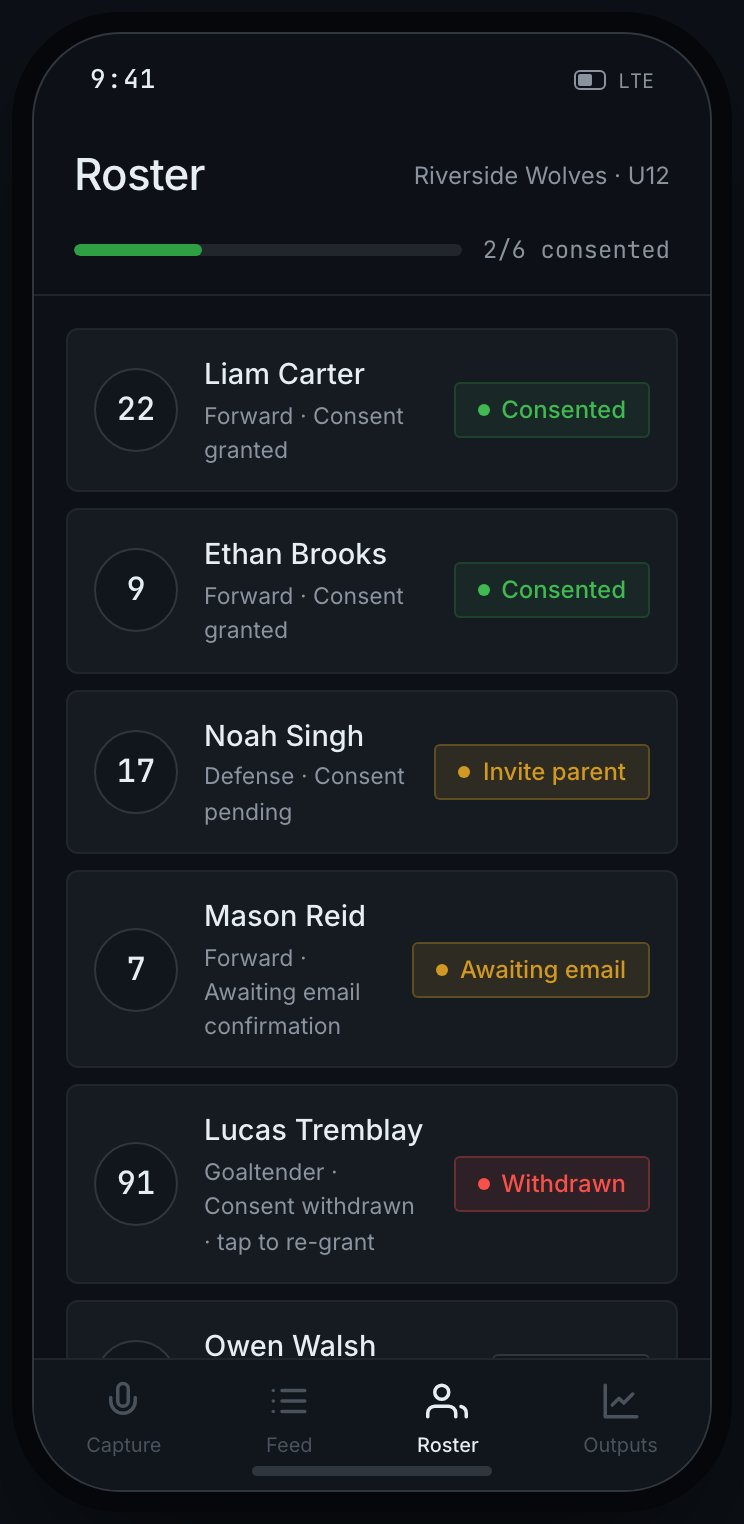
A camp's Roster & Consent tab — the same roster and consent gate as a team, with a status chip beside each player.
Add co-instructors
Camps often run with several instructors. Add them the same way you’d add any staff — invite them by email with a role (see Invite your staff). Every note records who captured it, so a session’s snapshot shows which instructor saw what.There’s no separate “instructor” role — co-instructors are staff on the camp, with the same
capture and review access you’d give any coach.
Run a session
You capture a camp in the phone capturer, not the desktop workspace. Because a camp is a program of sessions rather than a season, the capturer’s idle screen shows the camp’s sessions instead of a game/practice picker.1
Start a new session
Tap New session. Then either 🎤 Say the session — speak it, e.g. “session three,
edgework and transitions, Saturday at 9” — or type the fields by hand. Voice needs a
connection; typing always works.
2
Check it, then create
Speaking never creates anything on its own. You see the parsed session number, focus,
date, and time in an editable preview — fix anything that’s off — then tap Create
session. The session number is prefilled to the next one in the run.
3
Capture
Capture as usual. The session chrome shows where you are — “Camp · Session 3 of 4” —
and every note is filed under that session.
Read the reports
Reports are automatic — there’s no “generate” button.- After each session, RinkNotes writes a session snapshot for each player: a short read on how that session went.
- When the camp ends, it writes a cumulative camp report per player — the progression across every session, a summary, and the session snapshots together. A player with theirs done shows a Final chip.

Each session leaves a snapshot; at the end of the camp they roll up into one cumulative report per player.
Because reports are generated on a schedule rather than on demand, a snapshot or the final
report can take a little while to appear after a session ends — it isn’t instant.